Turn a drawing, sketch or inked line art into a clean black-and-white SVG: outlines for printing and cutting, or single lines for pens and lasers. Phone photos of paper work too, because uneven light is evened out first. Free, and your drawing never leaves your device.
No image handy? Try:
Traced on your device. Your image is never uploaded.
sketch.svg · 10 strokes · 10.5 KB
Real output: a 480 px PNG, traced on this page in Centerline mode.
At a glance
Input
Drawings, sketches, ink, scans and phone photos of paper
Output
Black-and-white SVG outlines, or single-line strokes; also PDF, EPS, DXF and PNG
Paper
Uneven light on a photographed page is evened out before ink is told from paper
Background
Transparent: only the ink is traced
Image size
Any. Outlines are traced at the image's own size, centerlines at 1,600 px.
Privacy
Runs in your browser. Nothing is uploaded.
Price
Free. No account, no watermark, no limits.
Engine
Our own contour tracer for outlines, our own skeleton tracer for centerlines
Your files
You keep all rights to your images and the files you make.
Outlines or single lines
There are two ways to turn a line into a vector, and they suit different jobs. An outline trace
follows both edges of each line and fills the space between, so the SVG looks like your drawing,
thick and thin strokes and all. A centerline trace follows the middle of each line and gives one
stroke, which is the path a pen or a laser should take. The tool does both, plus a third mode for
cutting machines:
Mode
What you get
Our kitten drawing
Use it for
B&W
Filled outlines of the ink, paper removed
22 shapes, 25.8 KB
Printing, stickers, logos, editing in Illustrator or Inkscape
Centerline
One stroke down the middle of each line
118 strokes, 56.5 KB
Pen plotters, laser scoring and engraving, Cricut pens
Cut file
One cut layer at a size you set, specks removed
17 to 22 pieces, by size
Cricut and Silhouette vinyl, iron-on and paper
The kitten's 22 shapes are few because its lines join up: a closed shape holds every connected
line, with the gaps between lines as holes. The centerline version breaks the same lines into 118
separate strokes, one for each run between crossings, because that is how a pen would draw them.
For more on single-line output, see Centerline Trace; for cutting,
the SVG converter for Cricut.
Photos of drawings: evening out the paper
A phone photo of a page is never evenly lit. One side is nearer the window, the corners fall into
shade, and the notebook's cover or the table sits around the edges. Simple tracers, ours included
until October 2026, split an image into ink and paper at one brightness for the whole picture. The dark
things around the page pull that line down until thin pen lines count as paper, and in the shaded
corner the paper itself starts to count as ink.
So when the paper in an image is unevenly lit, the tool now fits the paper's brightness as a smooth
surface across the page and divides it out, so the page reads as evenly white. Then it chooses the
line between ink and paper only from the pixels near paper, leaving out large dark areas and their
edges. Scans and digital drawings, whose paper is already even, go through exactly as before: our
eight other sample images trace to the same files, byte for byte, in Color, B&W and Centerline
modes.
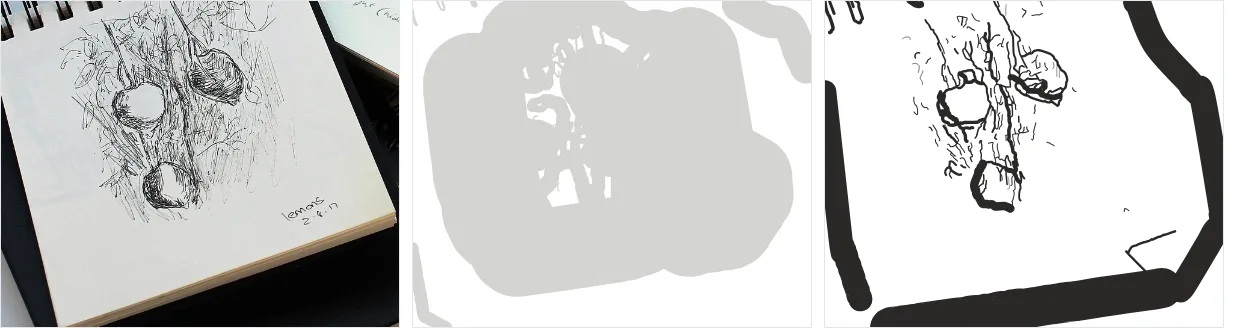
A photo of a pen sketch (Pixabay), traced in Centerline mode by our engine before
the change (middle), which took the page itself for ink, and now (right). The notebook's dark edges
still trace as strokes, which is why it pays to crop to the paper.
On the closer crop of the same sketch, offered as the sketch photo sample above, the
centerline trace now finds 230 strokes where it found 193. In B&W mode the evening-out matters
less there: that crop holds little besides the page, so a single threshold was already close.
How to convert a drawing to SVG
Photograph or scan it. Flat, filling the frame, in even daylight. Crop to the paper.
Add it to the tool. It opens in B&W mode with Transparent background on, so only the ink is traced.
Pick outlines or single lines. Stay in B&W for outlines, or switch to Centerline.
Check it. Drag the divider across the preview, zoom in, and turn on Outlines to see every path.
Clean up. Under Advanced, raise Despeckle if paper texture leaves specks, and adjust Smoothing: low keeps sharp corners, high gives flowing curves.
Download the SVG, or PDF, EPS, DXF or PNG.
Getting a clean trace from a photo
Crop to the paper. Anything dark around the page, a cover, the table or your fingers, is traced as ink.
Fill the frame. The more pixels each line gets, the smoother its curves. A thin pen line that is two pixels wide in the photo comes out broken.
Use soft, even light. Daylight from the side beats an overhead lamp. The tool evens out light that changes gradually, not a hard shadow, so keep your phone's shadow off the page.
Darken pencil. Faint pencil on textured paper breaks up. Ink over it, or darken the lines, before you shoot.
Expect hatching to multiply. Every hatch mark is its own shape: the sketch photo sample gives 558. Raise Despeckle to drop the smallest, or trace in Centerline mode.
Where it falls short
Hard shadows. Only gradual changes in light are evened out. The edge of a shadow traces as an edge.
Gray shading. B&W and Centerline keep ink and drop paper, nothing in between. For washes or soft shading, use Color mode on the image to SVG page.
Colored lines. They are traced if they are clearly darker than the paper, and come out black. To keep their colors, use Color mode.
It traces, it doesn't redraw. A gap in the photo stays a gap, and a wobbly line stays wobbly. Smoothing evens out small wobbles only.
Frequently asked questions
How do I convert a hand drawing to SVG?
Photograph or scan it, drop the image onto the tool above, and download the SVG. B&W mode traces the ink as filled shapes and drops the paper; Centerline mode gives one stroke per line. It is free and runs in your browser, so the drawing is never uploaded.
Should I use outlines or centerlines?
Use outlines (B&W) when the drawing has to look like the original, with its thick and thin lines: for printing, stickers, logos, vinyl and editing in Illustrator or Inkscape. Use Centerline when a machine follows the line: a pen plotter, a laser scoring or engraving, or a Cricut pen.
How do I remove the paper and shadows from a photo of a drawing?
The tool does it for you. When the paper in a photo is lit unevenly, it fits the paper's brightness across the page and evens it out before deciding what is ink, and the paper itself is left out of the SVG. It handles light that changes gradually across the page. A hard-edged shadow, like your phone's, is better avoided when you take the photo.
Why are my lines broken or doubled?
Broken lines are lines too thin or too faint in the photo: shoot closer so each line is several pixels wide, or ink over pencil first. Doubled lines are outlines: B&W mode traces both edges of every line, which looks doubled if your software draws the outline instead of filling it. Switch to Centerline for a single stroke.
Can I change the line color or width afterwards?
Yes. A B&W trace is a set of filled shapes, so change their fill color in any vector editor; their width is the width of your lines. A Centerline trace is a set of strokes, so you can change both the stroke color and the stroke width.
Can I cut or draw the result with a Cricut?
Yes. To cut it, use the SVG converter for Cricut, which makes one cut layer at the size you set and drops pieces too small to weed. To draw it with a Cricut pen, use Centerline mode here and set the strokes to Pen in Design Space.
Is my drawing uploaded?
No. Tracing runs in your browser on your own device, and the image never leaves it. That makes it safe for client sketches, signatures and unpublished work.